Lab 11: Event-based programming
CS151: Computational Thinking: Visual Media
Spring 2019
Goals
In this lab, you will explore principles from event-based programming and create a simple video game that roughly approximates the 70s arcade game Asteroids. Specifically, we will use timer events, keyboard button events, and collision detection.
As the gateway into the final project, this lab will review concepts we've learned all semester: lists, objects and object-oriented design, classes, inheritance, top-down design, and more.
Setup
- Make a new folder called Project 11. Copy over
turtle_interpreter.py,lsystem.py, andshapes.pyfrom Project 10. - Copy over a recent scene file that you made from Project 9 or 10 (e.g.
home.pyormosaic.py). This will be the background artwork for your video game! - Copy over any L-system txt files that your scene or shapes depend on.
TurtleInterpreter
- We are going object-oriented with turtle in this project! Replace your call to
turtle.setup()in theTurtleInterpreterconstructor withself.screen = turtle.Screen(). This creates an object of typeScreen, which represents theturtlecanvas. Call thesetup()method on theScreenobject, passing in your desired canvas size (e.g.dx,dy).
Make sure you do this step AFTER checking whether theTurtleInterpreterhas been initialized! - Create a get method
getScreenfor the screen instance variable.
Shape
- Move the creation of your
TurtleInterpreterobject fromdrawto the constructor. Make it an instance variable ofShape. Update your function calls indrawto refer to yourTurtleInterpreterinstance variable. - Create a get method
getScreenthat calls thegetScreenmethod from yourTurtleInterpreterinstance variable. This method will pass theScreenobject from theTurtleInterpreterto your game.
Game: Background artwork
- Open the file with the scene that you copied from a prior project (e.g.
home.py). - Make sure that the scene that you want to be the background artwork for your game is fully encapsulated in a function (if it's not, fix it). There should not be any top-level code in this file.
- Remove all direct references to
TurtleInterpreter/terpin your file (this includes removing calls to hold()!). You should only work withShapeobjects in your function. - After creating your first
Shapeobject, call itsgetScreenmethod and assign the screen object that it returns to a variable. For example:
sky = shapes.Square(distance=1000, fill=True)
screen = sky.getScreen()
-
Note if using
mosaic: You most likely have amosaicfunction that calls atilefunction in a nested loop.- Create a 'dummy' shape at the beginning of
mosaic(before the loops): e.g.sqr = shapes.Square()(filling in any required parameters). We're calling it 'dummy' because we aren't actually going to draw it, we just want to use it to get theScreenobject. - Call
getScreenon your 'dummy' shape object (e.g.sqr), assign the screen object that it returns to a variable. - Return the screen object at the end of the
mosaicfunction.
- Create a 'dummy' shape at the beginning of
-
Note about the purpose of
screen: We want to pass theScreenobject from where it was created in the first shape in your scene to the game. Here is a summary of its path:self.screen(TurtleInterpreterconstructor) ->getScreen(TurtleInterpreter) ->getScreen(Shape) ->scene(home.py/mosaic.py/etc) ->setupBackground(Game) -> self.screen (Gameconstructor)
- At the end of the scene function, return the
screenobject. - Create a new file
game.py. - Within the new file, create a:
Gameclass. Importturtle.setupBackgroundmethod. It should call your scene function to draw your background artwork (e.g. inhome.py). HavesetupBackgroundreturn the screen object returned by artwork scene function.- constructor. It should call your
setupBackgroundmethod and assign the return value to an instance variable inGame(e.g.self.screen). This should be the first thing that you do in the constructor.
mainfunction outside of the class. Create a newGameobject, then call its run method (see next step) to start the game.if __name__ == '__main__'top-level code at the bottom of the file that calls themainfunction.
- Add the following
runmethod to yourGameclass:
def run(self):
    '''
    Turns the tracer animations on (but speeds up animations) and starts the main game loop.
    '''
    # Make sure animations are on but fast
    turtle.tracer(True)
    turtle.speed(0)

    # Let's go!
    self.screen.mainloop()
- Run
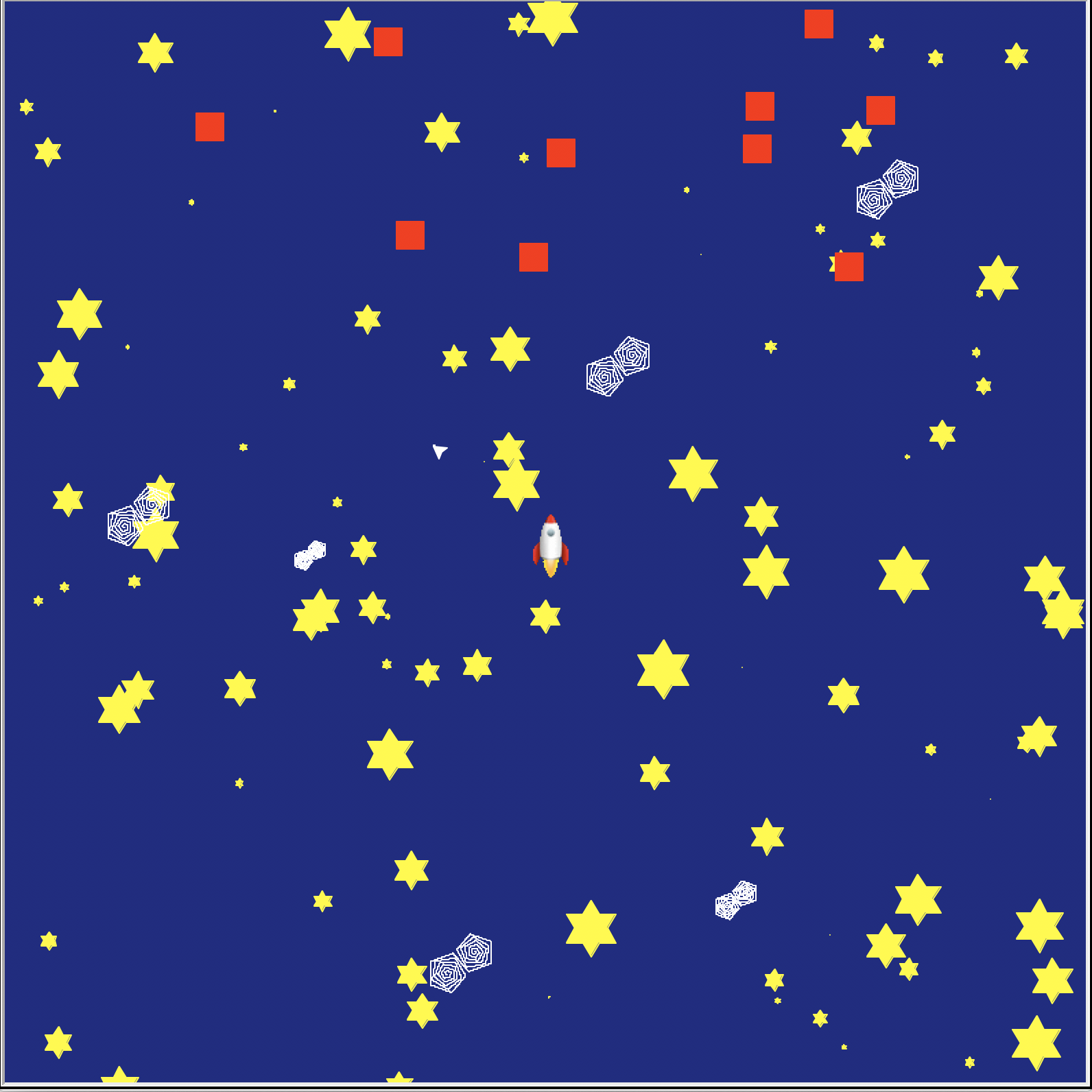
game.py. If everything is working so far, you should simply see your background artwork scene drawn to the screen (no game elements yet).
Game: Player Turtle
- Create the
makePlayermethod inGame. It should
- Create a turtle object (
turt = turtle.Turtle()) - Make the turtle shape look like a spaceship. Download the rocketship image, save it into your project folder. Run the following commands:

turtle.register_shape('rocketship.gif')  # Make the rocketship image available to turtle
turt.shape('rocketship.gif')  # Set the turtle icon to the rocketship image
- NOTE: In your project, you may use your own images. Python 3.7 wants you to convert the image files to *.GIF format. You can do this in Paint3D on Windows, in the Paint-like program of your OS’s choice, or with ImageMagik in the Terminal (see instructions in Project 4).
- In your file header, be absolutely sure to credit the original author! Failing to credit the author of a code sample like this is an academic integrity violation. Brian Marks. Available at: https://blog.trinket.io/using-images-in-turtle-programs/
- Pick the pen up.
- Make the turtle object face north.
- Return the turtle object.
- Call the
makePlayermethod from your constructor (after you setup the background artwork), assigning the output to an instance variable (e.g.self.player). - Run your game. You should now see your rocketship in the scene.
Game: Interactive player control
We're going to make the player turtle (rocketship) move under keyboard control!
- Add instance variables for player speed (units: pixels) and turn rate (units: degrees) in the
Gameconstructor. You might wish to create optional parameters for these, giving them default values of 20 and 10, respectively. - Create the following methods in
Game:
up: Move the player forward by its speeddown: Move the player backward by its speedleft: Turn the player left by its rotation rateright: Turn the player right by its rotation rate
- Create the
setupEventsmethod that creates your game events. Add keyboard callback events to the four movement methods you just created. Here, callback means that we will instruct our game to move our player by calling one of movement methods when we press the appropriate keyboard button. To add a callback, we call theonkeymethod of theScreenobject. It has the following syntax:self.screen.onkey(<Method name>, <String of keyboard button>). For exampleself.screen.onkey(self.up, "Up")for moving the player up. To assign to the four arrow keys, use the strings: "Up", "Down", "Left", "Right". - Add a callback to call the
quitfunction when the user presses the "q" key. - Call the
listenmethod on your screen object so that it will start calling the movement methods when you press the arrow keys. - Call
setupEventsat the end of the constructor. - Run your game. You should now be able to move your player around the scene!
Game: Enemies!
In this task, we will create a number of enemy turtle objects that move randomly.
- In your constructor, create four hard-coded (x, y) bounds instance variables, defining the rectangular region in which the game enemies will occupy. For example, this could roughly correspond to the top third of your screen.
- Create a method with the signature
def placeEnemyRandomly(self, turt):, which will move theturtobject to random coordinates within the enemy bounds you defined in (1). - Create a method with the signature
def makeEnemies(self, n):It should
- Create a list of
nturtle objects. - Change their avatars to squares (
turt.shape('square')) and set the color to a color of your choosing via the usual means. - Pick up their pens and call
self.placeEnemyRandomlyon each enemy. - Return the enemy list.
- Call
makeEnemiesfrom yourGameconstructor, assign the return value to an instance variable (e.g.self.enemies). Either hard coden(number of enemies) or make it an (optional) parameter in your constructor. - Run your game. You should see stationary enemy square objects in their designated zone.
Game: Enemies on the move
In this task, we will create a timer event to randomly move the enemies over time.
- Create the method
def moveEnemiesRandomly(self):. It should set each enemy's position to the current position plus a small random (x, y) offset. - In
setupEvents, create a timer that will automatically callmoveEnemiesRandomly50 msec after the game starts. The syntax is:self.screen.ontimer(<method name to call>, <int: wait time in msec>). - The
ontimeronly will call themoveEnemiesRandomlymethod ONCE 50 msec in the future, but we want to continue moving them every 50 msec indefinitely. To do this, add an identical timer at the end ofmoveEnemiesRandomly. Make sure that you understand why we're doing this before continuing. - Run your game. You should see your enemies moving on the screen!
Game: Collision detection
We will create another timer event to have the enemy take an action when the player collides with it.
- Add an instance variable to the constructor that defines how close the player needs to get to an enemy for the game to register that a collision happened (collision radius). You may wish to make an (optional) parameter of the constructor. A reasonable default value is 30 pixels.
- Create the method:
def checkForCollisions(self):. It should
- Calculate the distance between the player and each enemy.
- If the distance is less than the collision radius, print "BOOM!" and call
placeEnemyRandomlyon the enemy that the player collided with.
- Add a timer callback in
setupEventsto check for collisions. - Add an identical timer callback at the end of
checkForCollisions. - Run your game. Test it by colliding with an enemy. Something should happen!