Lab 3: Mondrians
The goals this week are to:
- Practice controlling the algorithmic flow of your programs with loops.
- Practice incorporating conditionals into our programs to affect the appearance of your scene.
- Learn how to use command-line arguments to flexibly control how your program works without changing any code.
- Use keyword arguments in functions.
- Strategically use randomness to make your scenes more interesting.
- Lab 3: Mondrians
Tasks
L1. The setup
Create a Lab03 folder on your computer where you store CS151 projects and labs, hopefully somewhere that is backed up (e.g. in Dropbox, Google Drive, Microsoft One Drive, etc.)
Open VS Code. Create a new Python source code file calledlab3.py. Import the random and turtle modules.
Open up a Terminal (e.g. Control+` in VS Code) and change the directory (cd) to the Lab03 folder.
L2. Conditionally fill rectangles
Let's use conditionals to control whether a rectangle is filled with color.
L2a. Copy-and-paste goto and rectangle from last week's project
If you have not already created a function that draws a rectangle with position parameters, no problem, take a moment and write one now.
The function signature should be:
def rectangle(x, y, width, height):
  '''Draws a `width` x `height` rectangle with bottom-left corner positioned at (`x`, `y`).
  '''
  # your code here
Important: For full credit, your implementation MUST use a for loop. The reason is that this makes your code more readable, concise, maintainable, and efficient.
L2b. Test rectangle
Test out your rectangle function out in main code by creating 3 rectangles:
- A tall and narrow rectangle on the left side of the canvas.
- A square in the center of the canvas.
- A short and wide rectangle on the right side of the canvas.
Here is an example of what you should get:

L2c. Add a keyword argument for fill to rectangle
Name the parameter fill and give it a default value of False. Have the function fill the shape if the fill parameter is True.
Remember to stop filling by the end of the function, but only if you started filling in the first place. Hint: You can check the fill argument or this turtle function.
L2d. Add keyword arguments for edge and fill colors of the rectangle
Name the parameters edgeColor and fillColor. Give them default values (edgeColor should be black by default). For the moment, assume that colors coming in will be strings (e.g. 'red').
Change the turtle's pen color using the two parameter version of the color function to specify the edge and interior colors, respectively. For example, if I wanted to change the pen edge color to red and the interior color to blue, I would write turtle.color('red', 'blue'). Remember to always change the pen color back to black by the end of the function.
L2e. Add a keyword argument for the pen width (thickness) to rectangle
This will control the thickness of the lines that the turtle draws. Call the parameter penWidth. Give it a default value (The width value you are used to seeing is 1).
Set the turtle's pen width according to the argument value and reset it to 1 at the end of the function.
L3. Mondrian main function
Let's write a function that uses your customized rectangles to make a Mondrian pattern.
L3a. Drawing a Mondrian
Create a function called main in lab3.py. In it, create a for loop that randomly places 200 rectangles of random sizes within your canvas. Use an if statement to fill 40% of the rectangles. Don't change the default colors for now. Generate random values for the other rectangle function parameters. Here are some suggestions:
- Rectangle x and y positions between -500 and 500 pixels. random.randint(low, high) should be helpful.
- Widths and heights between 50 and 150 pixels.
- Set the pen width to some value > 1 that looks good!
At the very bottom of your program, use the following conditional statement to make sure that main is only called when lab3.py is run directly from Terminal:
if __name__== '__main__':
  main()
This if statement should be the only main code that you have from now on. In other words, the "if" should be on the only thing (other than function definitions and your imports at the top) that should have no indentation. Anything that you are tempted to put in main code should now be indented inside if __name__== '__main__':.
L3b. Testing your Mondrian main function
Add a call to exitonclick after calling main in the new conditional statement (indented) to make sure the canvas window stays up after the turtle is done drawing.
Tip: You can add the usual turtle.speed(0) before the call to main to speed up the drawing. To really speed things up, you can turn off the animation of the turtle drawing all together using turtle.tracer(False), again right before the call to main.
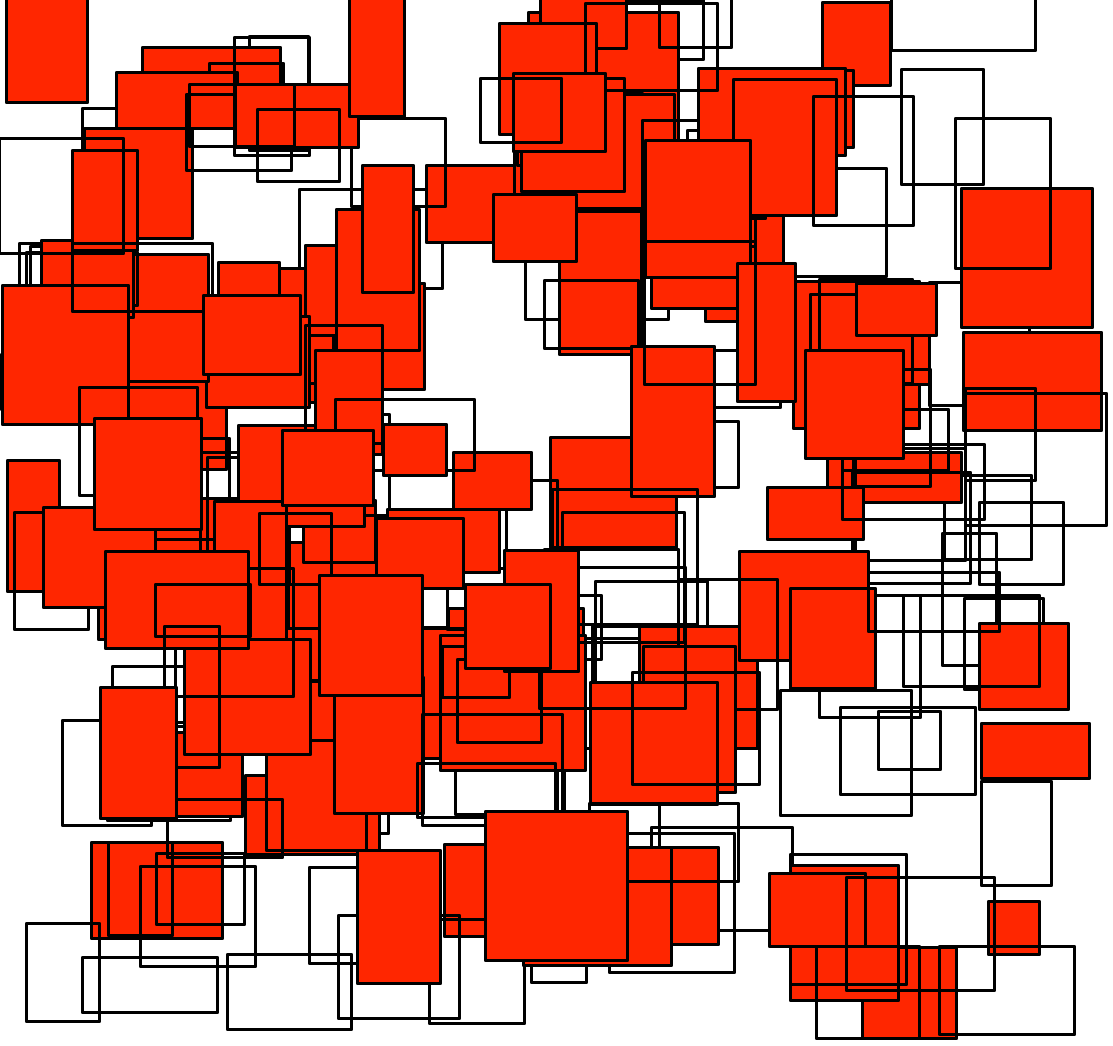
Running lab3.py should give you something that looks like (my default fill color is red):
L3c. Randomizing rectangle colors
Using English words to name colors (red, blue, pink, etc.) is convenient, but it does not make it easy to randomly change the fill color in our rectangles! Any color of light can be produced by mixing red, green, and blue together in different proportions. For example, (0.3, 0, 0.9) would mean: make a color with 30% red, 0% green, and 90% blue. At the extremes, (0, 0, 0) would produce black and (1, 1, 1) would produce white.
You can specify colors to turtle as these RGB tuples (Red, Green, Blue). For example, instead of turtle.color('blue') you could write turtle.color((0, 0, 1)). Note the double parentheses: one set for the function call, the other to surround the RGB tuple.
In your loop within main, generate 3 random floats between 0 and 1 and specify the fill of your rectangle using a tuple containing these values.
Note: Don't forget the parentheses () when creating a tuple. This would work: fillColor=(0.1, 0.2, 0.3), but this would not work: fillColor=0.1, 0.2, 0.3
L3d. Test your colorful Mondrian
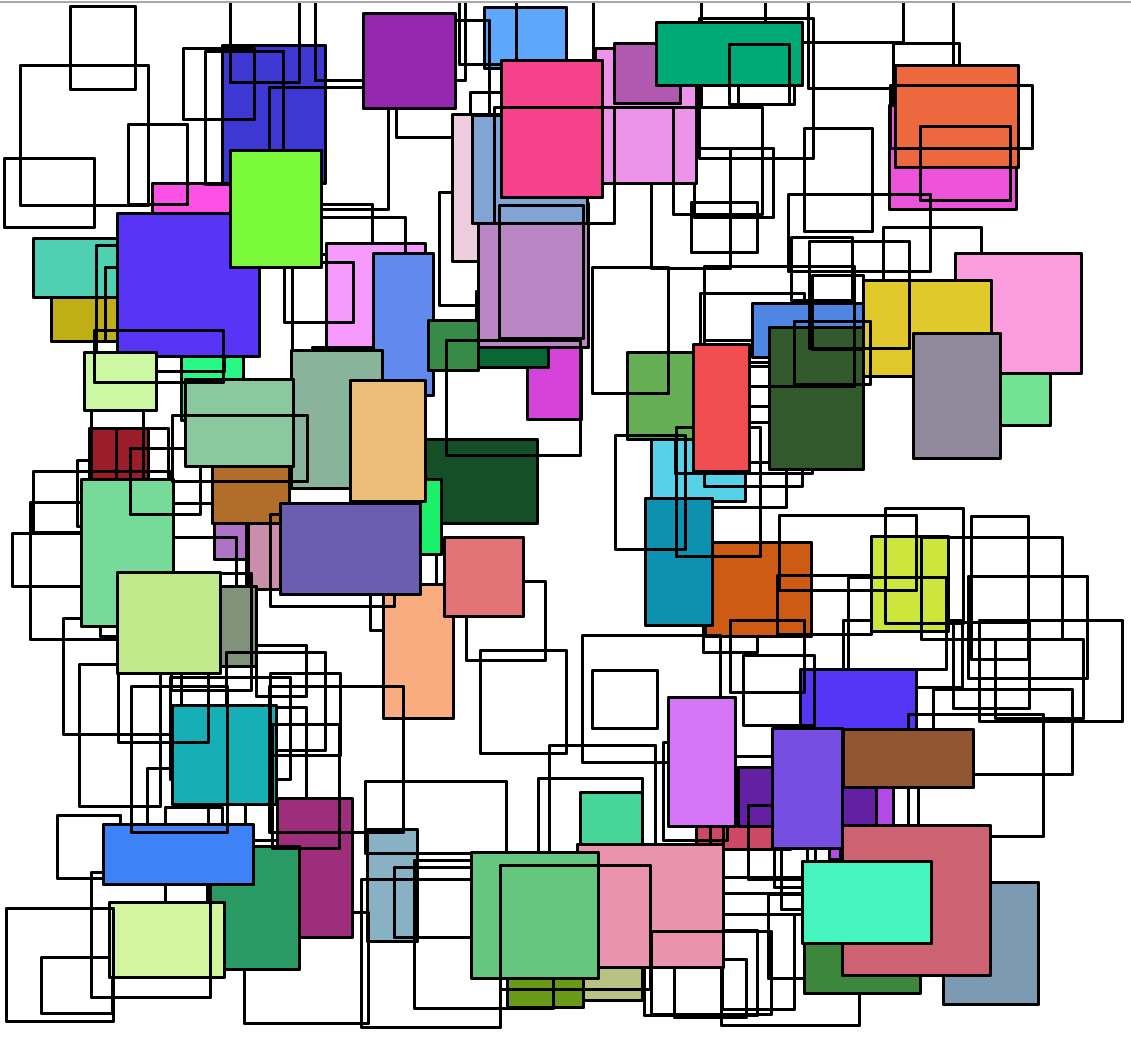
You should get something that looks like:
L4 Control your Mondrian from the command line (Optional)
Updated note: Completing this section is optional. It will help set you up for Task 7 of the project (also optional), which counts as an extension.
Let's say that you wanted to adjust the number of rectangles that are drawn in your Mondrian. You would have to go into your code file and change the 200 to something else, save, and re-run your code. There is a more convenient way using something called command-line arguments!
The idea is that you would supply that information when you run your Python program in Terminal. This is what you would write we if wanted 100 rectangles drawn:
python3 lab3.py 100
This would be what you write to get 50 rectangles:
python3 lab3.py 50
Let's explore how command-line arguments work before integrating them into your Mondrian program.
L4a. Command-line arguments
Create a new file called lab3args.py and import the module sys. Add the following line to the file:
print(sys.argv[1])
Save and run lab3args.py as follows:
python3 lab3args.py hello world 1 2 3
What do you see? Try replacing the 1 [1] with another integer, 0 or larger. What happens?
Add the following three lines below the line print(sys.argv[1]):
print(sys.argv[0])
print(sys.argv[3] * 3)
print(int(sys.argv[3]) * 3)
Run the program using the following command.
python3 lab3args.py three times 3
Why do you get the output that you see?
L4b. Use command-line arguments to control the number of rectangles in your Mondrian
- Import
sysinlab3.py - In
main, before your loop, define a variable and assign to it the number of rectangles from the command line arguments. Remember to convert from string to an int (Hint: look at the command-line argument example code above). Create that many rectangles with your loop. - Test out your program with different numbers of rectangles.
- Save a screenshot showing your favorite number of rectangles. This is Required Image 1 in your project report.
Get started with the project
Once you are done with each of the lab tasks, you may start on the project.