Lab 7: Morse Code Communication
A CS151 Survival Tool
In this week's lab, you will start working on implementing two programs to send and receive Morse Code messages! This lab will guide you through the steps of writing your code for the Morse code sender, and your job in project 7 is to implement the visual elements of the sender and implement the receiver program.
The goals this week are to:
I recommend that you start working on this project today. As always, let me know if you have any questions or if you need any help.
Create a Lab07 folder on your computer where you store CS151 projects and labs, hopefully somewhere that is backed up (e.g. in Dropbox, Google Drive, Microsoft One Drive, etc.)
Open VS Code. Create a new Python source code file morse_sender.py. Import the turtle module.
Open up a Terminal (e.g. Control+` in VS Code) and change the directory (cd) to the Lab07 folder.
Write your file header with your name and file information. And set up a main function that you call through the following statement:
if __name__ == "__main__":
main()
Make a dictionary of letters as keys and their equivalent Morse code as values in the global scope (no indentation). Here’s something to get you started:
MORSE_CODE_DICT = { 'A':'.-',
'B':'-...',
To complete this dictionary, take a look at this wikipedia page: https://en.wikipedia.org/wiki/NATO_phonetic_alphabet
Write make_window and make_turtle functions like we did last lab. You can copy them if you want, but why don’t we practice writing them again to refresh our memory. Here are the function signatures to help you write the two functions:
def make_window(window_title, bgcolor, width, height):
''' this function creates a screen object and returns it '''
def make_turtle(shape, color, stretch_width, stretch_length, x_pos, y_pos):
''' creates a turtle and sets initial position, returns the turtle '''
After writing the two functions, let’s make a window object in the main function with the following parameters:
"Morse Sender V2.0", "light sky blue", 800, 600
Remember that make_window returns a screen object, so let’s call that object window.
Similarly, let’s make a turtle object in the main function, called my_turtle, with the following parameters:
'classic', "white", 1, 1, 0, 0
Remember that make_turtle returns a turtle object.
Next, let’s write some code to take a message as input from the user in the main function (where you created the window and the turtle). Here’s a reminder of how to take in a string input from the keyboard:
text_message = input("Please enter the message you want to send here: ")
Use any string functions from class to convert the text_message to all uppercase (check your notes to find the function that converts a string to all uppercase). Print the string after conversion to confirm that the string is all uppercase.
Next, in the main function, loop over all letters of the text_message one by one and call the function morse_send(my_turtle, letter) on each letter. Complete this code to make that loop call morese_send repeatedly:
for :
morse_send(my_turtle, letter)
The function morse_send takes in a turtle and a letter. The function is expected to draw the morse representation of the passed letter. The following code is the implementation for morse_send, but it contains a bug. This means that you should read the code, add comments, and use print statements to find the bug and fix it.
def morse_send(turt, letter):
''' '''
if letter not in MORSE_CODE_DICT:
signal = MORSE_CODE_DICT[letter]
for part in signal:
turt.write(part, font=('Arial', 145, 'normal'))
time.sleep(0.7)
turt.clear()
time.sleep(0.5)
The line time.sleep(0.7) makes the program pause for 0.7 seconds, and therefore freez whatever is on the screen during that time. Make sure you import time in order for it to work:
import time
Try different values with the sleep function to see how that affects Morse code readability.
Your first task is to enhance the visual representation of the morse code being displayed on the screen. You are expected to build a scene around the Morse code signal, maybe a sinking ship or a flickering star in the night sky of an alien planet. Be creative!
Your 2nd task is to write a new program from scratch to take in a Morse signal as dashes and dots to produce the message in English. For example, entering the following into the program should produce the text SOS (Save Our Souls): … --- ...
To do that, you will need to build a new dictionary that is the exact opposite of the one you created in the Morse Sender program. This dictionary is intended to convert dashes and dots into letters, so the key is a string consisting of dashes and dots and the value is an English letter. Again, you are encouraged to be creative with your graphical representation and code.
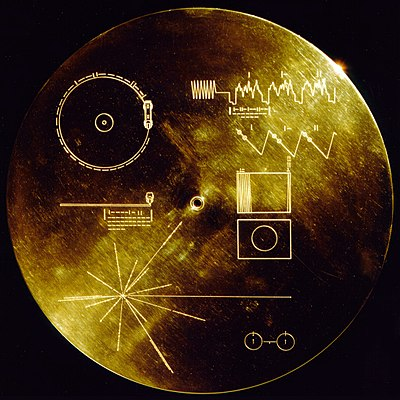
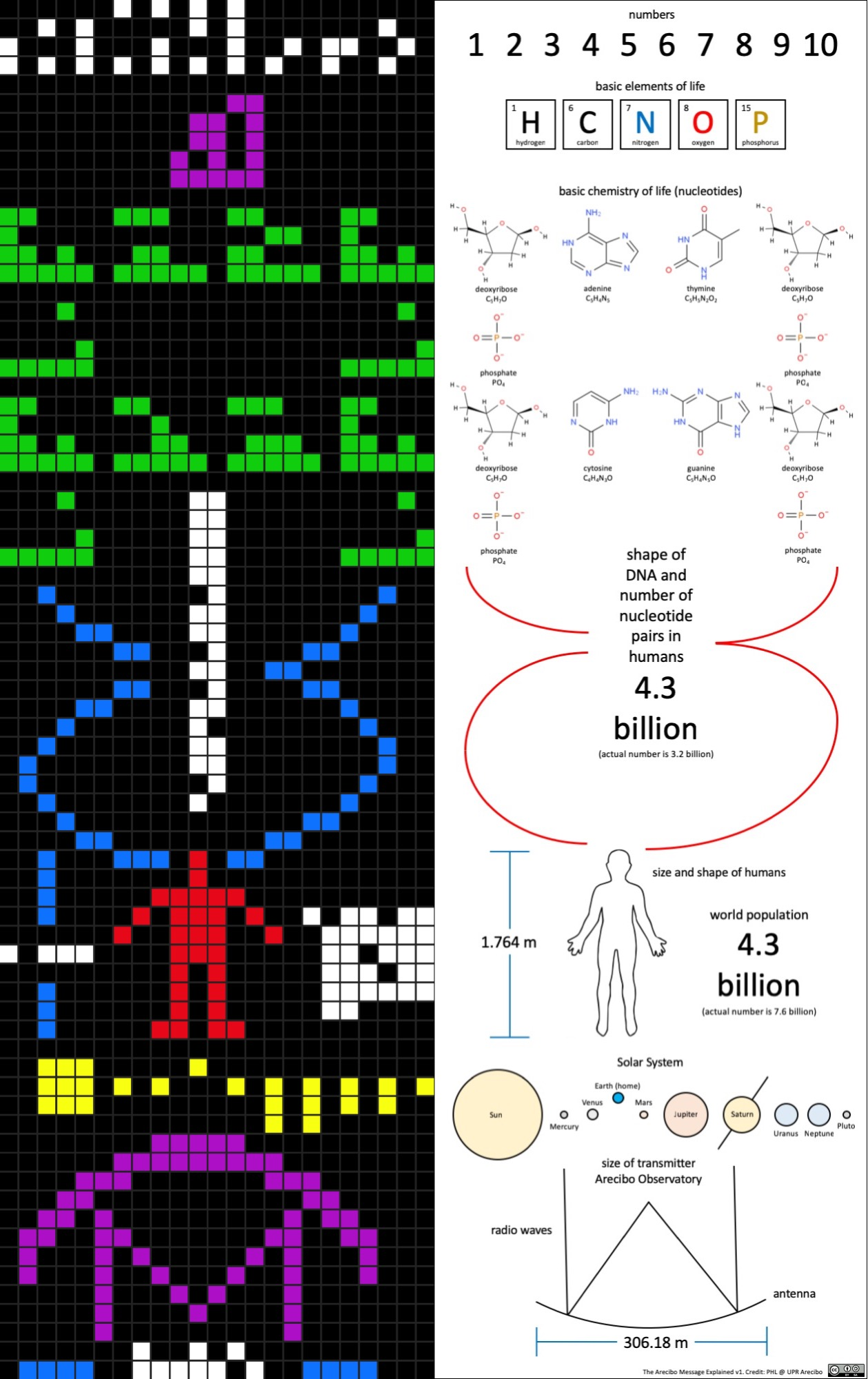
Language is fascinating, as it allows humans to communicate ideas and emotions effectively (to some degree). Humanity has envisioned communicating with alien civilizations on multiple occasions, all of these attempts have been based on visual communication without the assumption of a common language. Your job in the 2nd part of this project is to design your own visual message to a potential alien civilization using Python Turtle. This message should not include any form of written language and it should be completely visual. Think about what you would like to say to an alien civilization, and then think about how you would illustrate that message visually. Here are some previous attempts by scientists for inspiration:
Image source: http://phl.upr.edu/press-releases/thenewarecibomessage
Team work:
Each CS151 C2 student is expected to join a team of two people. It is your responsibility to find a team mate. If you are looking for a teammate add your name and email to this list to get matched with someone from the list: Spreadsheet
After you have created your Python turtle visual message, share it with your teammate without revealing the intended message. Each student is expected to include their illustration and the intended message in their report, and also reflect upon the illustration of their teammate to decode its meaning. This project is due on October 20th, and the deadline to send your illustration to your teammate is October 16th.
This lab is sponsored by the Galactic Federation 👽