Lab 8: Memory Puzzle
A CS151 Game Reproduction
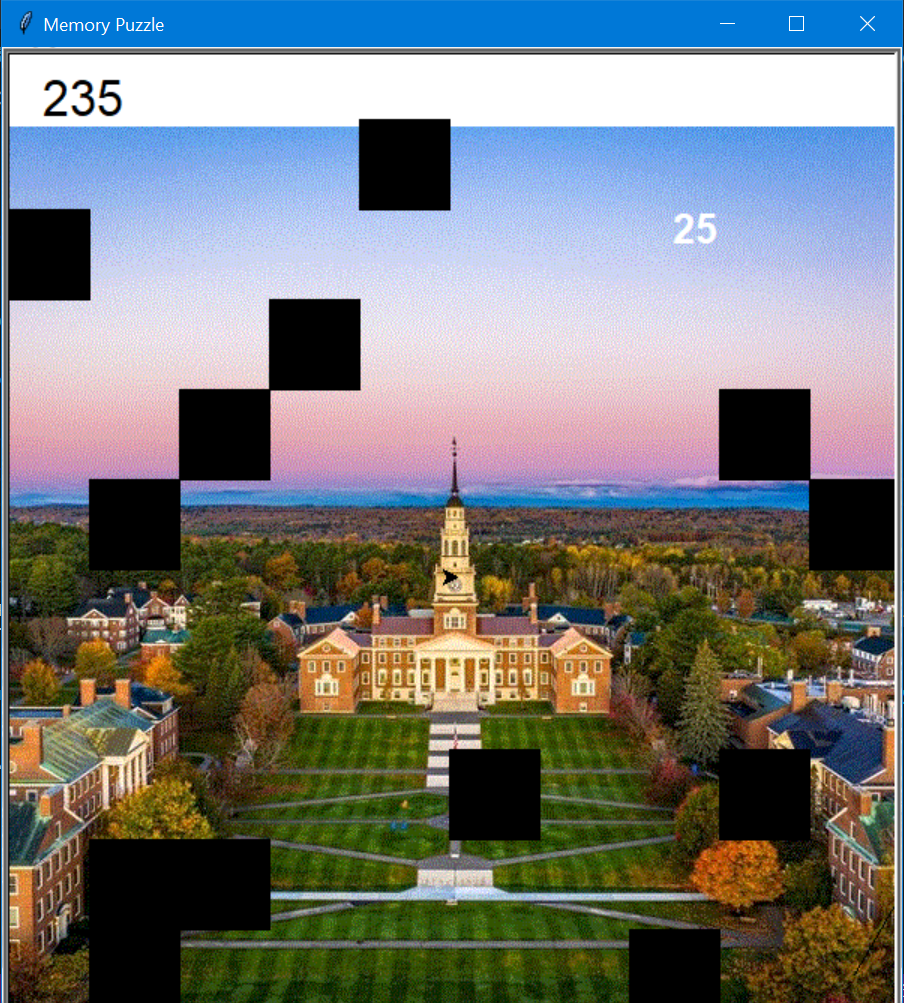
In this week's lab, we will start working on another game called Memory Puzzle. The game presents a grid of hidden numbers which overlay an image. The goal of the player is to match the numbered cells in the grid to make them disappear and view the image behind the grid. When a cell in the grid is clicked, its value is shown until the next click, making the game a good memory test.
The goals this week are:
- Practice using grids.
- Practice drawing data from a grid based on a set of game rules.
- Practice event driven programming by implementing game logic.
I recommend that you start working on this project today. As always, let me know if you have any questions or if you need any help.
Tasks
L1. The setup
Create a Lab08 folder on your computer where you store CS151 projects and labs, hopefully somewhere that is backed up (e.g. in Dropbox, Google Drive, Microsoft One Drive, etc.)
Download the file memory_puzzle.py [HERE] ,copy it to your Lab08 folder, and open it in VS Code.
Download the image file Colby.gif [HERE] and copy it to your Lab08 folder.
![[HERE]](https://www.google.com/url?q=https://cs.colby.edu/nsalmadi/teaching/CS151/F20/projects/08/Colby.gif&sa=D&ust=1603374936824000&usg=AOvVaw1Z46nFmW11p2qxQeOIF6Q9)
Open up a Terminal (e.g. Control+` in VS Code) and change the directory (cd) to the Lab08 folder.
Read the code already in the file and make sure you understand it before you proceed. This is called Code Comprehension, and it is the most common activity in software development.
L2. Make a Game Grid
First, let’s make a game grid by implementing the make_grid(rows, cols): function. Read the function docstring to understand the intended job of the function. The function is expected to do the following:
- Make a grid of rows X cols.
- Create an empty list called numbers.
- Fill the list of numbers with numerical values, each value should repeat twice. The size of the numbers list should be equal to the number of cells in the grid.
- Loop over every element in the grid. Pick an element from the numbers list at random and add it to the grid at every iteration.
- Return grid.
Make sure this function works for a grid of any number of rows or columns. Test this function by printing the grid and inspecting it visually. Every value in the grid should appear twice.
L3. Draw Game Grid
Next, let’s implement the function draw_grid(grid, turt, x_pos, y_pos, tile_size, clicked=(-1, -1)) which draws the game grid on the turtle window. Inspect the function parameters and docstring to understand its intended job. The function is expected to do the following:
- Clear any previous drawings by the turtle.
- Loop over all the elements in the grid.
- Draw each grid cell in the right position on the screen:
- If the grid cell is clicked, then write its value on the window.
- If the grid cell is -1, then don't draw it.
- Otherwise stamp the turtle at that position.
Test this function by drawing a grid and passing a specific clicked tuple representing a row and a column on the grid.
Project 8
P1. Play Function
The play function is expected to be called every time there is a click on the window. The job of the function is to take click positions (X_pos, y_pos) and convert them to grid positions (row, column). In addition, the function handles the game logic when a cell is clicked by showing the cell and matching it to the last clicked cell. Therefore the function is expected to do the following:
- Converts click positions to grid row and column.
- Record grid click position as a tuple (stored in a variable called “clicked”).
- Check if the value at "clicked" matches that at "last_clicked", and set both to -1 if they match. Else: update the value of last_clicked with the new clicked position.
- Make sure that a cell can NOT be matched with itself.
- Draw grid and update window.
- Check if the game is over.
P2. Remaining code
The main function is expected to connect mouse clicks on the window to the play method, and update the window infinitely. In addition, you should count the number of clicks and display that on the screen every time the draw_grid method is called. This adds an element of competition to the game, where players try to solve the puzzle with the fewest number of clicks.
Extensions
Here are a few ideas for project extensions:
- Add a timer to the game in addition to the number of clicks (easy = 2 points possible). This timer displays how many seconds it took to finish the game. As a hint take a look at this line of code to figure out how to use it to measure time since the beginning of the game:
current_time = time.time()
- Add progression to game difficulty, where the game starts with a grid of 4 X 4 and after each round the grid size increases and the background image changes. This idea includes allowing the game to run repeatedly, clearing the grid after each round. (medium = 4 points possible)
- Add a secret button to the game to make all grid values visible for 1 second. For example, when the “h” button is pressed on the keyboard the all numbers in the grid become visible for one second. (medium = 3 points possible)
- Change cell colors to indicate how close the matching cell is. For example, if the matching cell is adjacent the cell would be displayed in green, and if it is far it would be displayed in red. (difficult = 4 points possible)
- Be creative! ( 4 points possible)