Project 3: Scenes within scenes
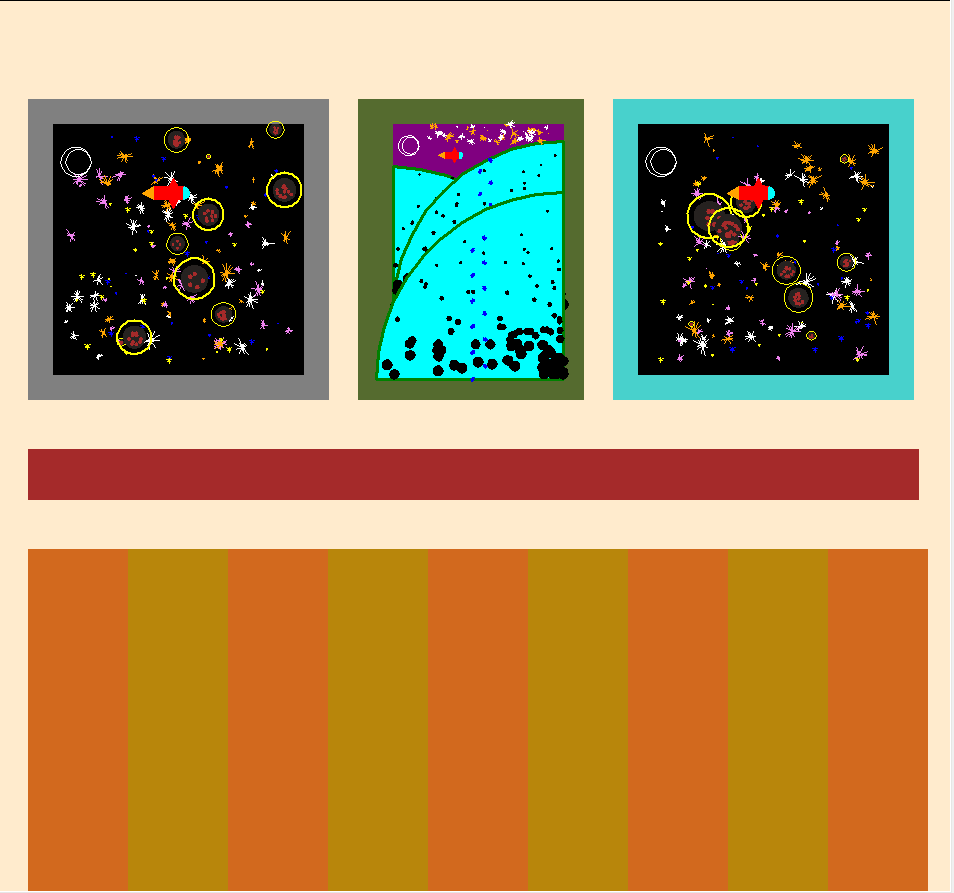
In this project, you will practice using functions to make scenes with more hierarchical complexity. So far, you have made scenes as collections of compound shapes, which are collections of simple shapes. Now you will take this one step further and create a museum scene that will incorporate miniature versions of your previous scenes in it (scenes within scenes)!
The goals of this project are:
- Encapsulation: making each shape and scene function work as independent units that you can re-use at any time.
- Use conditionals and command-line arguments to add nuance to your scenes.
- Use keyword parameters to add extra structure.
- Use best practices for code organization.
Extension points are awarded for complex scenes, especially those that show me that you can integrate concepts from lecture into making your scenes and take things to the next level!
Tasks
- Project 3: Scenes within scenes
- Tasks
- 1. Create
better_shapelib.py - 2. Make a Mondrian "scene"
- 3. Copy-and-paste at least 2 simple shapes from Project 2 into
better_shapelib.py - 4. Copy-and-paste at least 2 compound shapes from Project 2 into
better_shapelib.py - 5. Copy-and-paste one of your scenes from Project 2 into
better_shapelib.py - 6. Create your museum scene of scenes:
museum.py - 7. Control an aspect of your museum scene with command-line arguments (Optional)
- 1. Create
- Check reproducibility
- Extensions
- Submission checklist
- Tasks
1. Create better_shapelib.py
Import turtle and random. Copy-and-paste in your goto and rectangle functions from lab.
2. Make a Mondrian "scene"
2a. Make a mondrian function
Copy-and-paste main from lab into better_shapelib.py. Rename it mondrian.
Add an keyword argument named numRectangles that has some default value. Have numRectangles control the number of iterations your loop runs, replacing the command-line argument (from sys.argv). You will be able to still control this with command-line arguments if you would like; you can add it back in later.
The function signature so far should be:
def mondrian(numRectangles=<int of your choice>):
  '''Fill me in'''
Test out your mondrian function to make sure that it works. This should be done by adding the following to the bottom of better_shapelib.py:
if __name__== '__main__':
  mondrian()
Notes:
- You will want to modify this main code to call
exitonclickand probablyturtle.tracer(False). - Every time that you develop a new shape and/or scene in this project, you should test them out in main code like this and running
better_shapelib.pyto make sure they work.
Do NOT wait until the end of the project to test your code! Test as you go! - For
mondrian(and all other files and functions), follow the code organization best practices (e.g. make docstrings, use inline comments, etc.). This will affect your grade!
2b. Add position and scale parameters to mondrian
Imagine that the Mondrian that is drawn by your mondrian function is "a compound shape". Add required position and scale parameters:
def mondrian(x, y, s, numRectangles=<int of your choice>):
  '''Fill me in'''
Make the position parameters adjust where on the canvas the Mondrian is drawn and the scale parameter adjust its size. Test out drawing your "Mondrian scene" a few times in different positions at different scales. You should get something that looks like this:
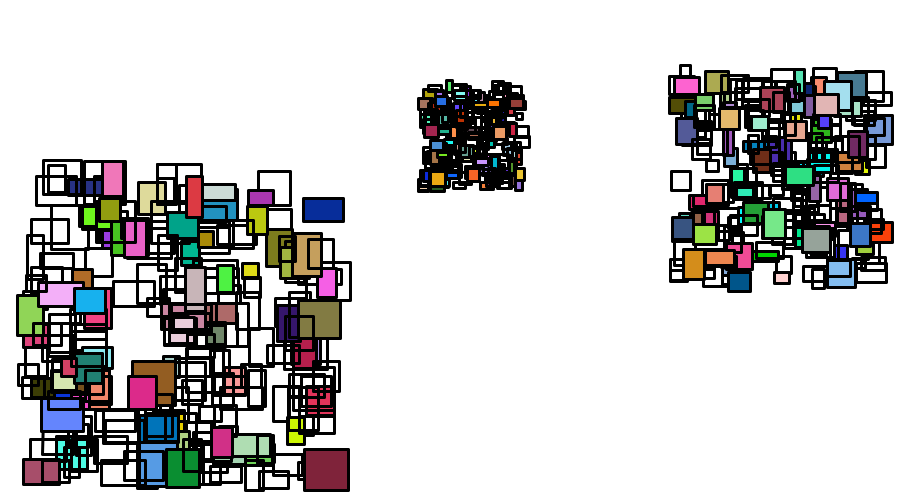
Hint: It might help to think of the random positions of the Mondrian rectangles as offsets from the (x, y) that you pass into the mondrian function.
3. Copy-and-paste at least 2 simple shapes from Project 2 into better_shapelib.py
Think ahead: you will be making miniature versions of one of your scenes from last week's project and placing them in a "meta" museum scene (e.g. as paintings, statues, rug patterns, views outside windows, etc.). So you probably will want to pick shapes that are needed to draw your scene.
Things to do for each simple shape function you paste into better_shapelib.py:
- Make sure that they use loops where ever possible. The goal is to make your code as efficient as possible in terms of the number of lines of code and the simplicity of that code. None of your functions should have lots of repetitive code!
- Add a
fillkeyword argument and integrate it into your function. - Add a
colorkeyword argument and integrate it into your function. - Remember: test each function one-by-one as you go.
4. Copy-and-paste at least 2 compound shapes from Project 2 into better_shapelib.py
They should rely on the simple shapes from Task 3.
- Make sure that they use loops where ever possible.
- Add a
fillkeyword argument and integrate it into your function. - Add a
colorkeyword argument (maybe more if you need to control more than one color) and integrate it into your function. - Add at least one element of randomness into your compound shape (doesn't need to be fancy). For example, only fill the shape 50% of the time, or pick between one of two colors.
5. Copy-and-paste one of your scenes from Project 2 into better_shapelib.py
Or create a new scene if you wish. Add position and scale parameters so that the function signature looks something like mondrian (you might need more parameters):
def myScene(x, y, s):
  '''docstring'''
  # your code here
Make it so that your function uses the scale s and position (x, y) parameters like usual.
Reminders:
- Position one of your scene's shapes at
(x, y), convert the remaining hard-coded positions into offsets from(x, y). - Scale offsets and lengths/distances, NOT positions.
- Leave angles alone (e.g. don't change commands like
turtle.left(30)). - Commands that move the turtle count as lengths/distances
turtle.forward(100)turtle.forward(s*100)
5a. Test drawing your scene at multiple positions and scales
Call your scene function at least three times (in main code — i.e. indented in if __name__== '__main__':). Take a screenshot like you did for the Mondrian above. This is Required Image 2 to be included in your project report.
6. Create your museum scene of scenes: museum.py
In museum.py, import your better shape library. You probably want to rename the import to save you typing:
import better_shapelib as bsl
Create a function called museum in museum.py that is a new scene that looks like a museum that includes:
- the scene that you pasted in and updated from Project 2.
- the Mondrian
You should use each of the above scenes in the museum at least once (e.g. the view outside a window, paintings, sculptures, wall or rug patterns, etc.). Draw additional simple and compound shapes to make it look like an actual museum. Be creative!
Running python3 museum.py should draw your museum scene. Take a screenshot. This is Required Image 3 to be included in your project report.
7. Control an aspect of your museum scene with command-line arguments (Optional)
Updated note: Completing this section is optional. Doing so counts toward extensions.
It does not have to be fancy. For example, the command-line argument could control the color of an object or the time of day.
Take screenshots of both versions of your museum scene.
Important: Both your report AND museum docstrings should make it clear to me how I should run your museum.py to generate your museum scene versions. For example:
def museum():
  '''Draws my museum scene.

  Requires a command-line argument to change the color of a painting. The following makes it red:
    python3 museum.py red
  The following makes it blue
    python3 museum.py blue
  '''
Check reproducibility
In order to grade your project, we need to be able to run your code and get the same results as you do! Here is a summary of the expected outputs from each of the source code files that you created:
python3 lab3.py: Draws your Mondrian from labpython3 better_shapelib.py: Draws your scene updated from Project 2 (or a new one if you decided to do that).python3 museum.py: Draws your museum (scene of scenes).
Extensions
Congratulations on completing the core tasks! If your code and report meet the above expectations, you’ve already earned up to 26/30 points for this project.
The remaining 4/30 are a chance for you to earn credit for exploring parts of this project and digging deeper to express your creativity! This is entirely optional; 26/30 is a B and is a perfectly respectable place to stop. Extensions are open-ended and exist to compliment the structured core project. Explore and learn something new that interests you! Concentrating your energy on 1-2 "deep" extensions that challenge you will earn you more points than many small, "shallow" extensions.
You can pick your own topics that interest you. Here are a few examples:
- Creative or complex scenes above and beyond the basic expectations count as extensions
- Make a new scene and place it into the museum scene.
- Demonstrate even more levels of hierarchical encapsulation (scenes within scenes within scenes).
- Have the command line arguments control a number of different aspects of the scene. Be sure that you use
sys.argvinmuseum.pyand themuseumfunction.
Submission checklist
To turn in your project, make sure you do all of the following:
- Check the rubric on Moodle and make sure your report and code contain all the required parts.
- Move your lab folder inside your project folder (i.e. drag the
Lab03folder insideProject03). - Make sure your
Project03folder contains your code, report, and any other required files. - Upload (drag) the folder
Project03to your Google Drive folder that is associated with this course. - Make sure you don't modify your code or files after the due date.