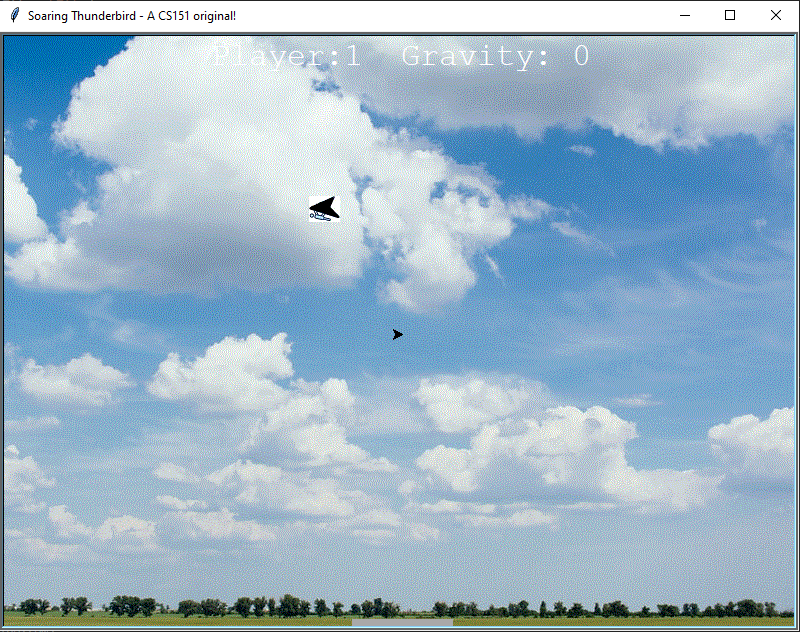
Lab 5: Soaring Thunderbird
A CS151 Original Game
In this week's lab, you will start working on a game that we call "Soaring Thunderbird" where a single player controls a glider with the goal of landing at an airport at the bottom of the screen. The game is fun and we look forward to seeing how you will improve it!
The goals this week are to:
Create a Lab05 folder on your computer where you store CS151 projects and labs, hopefully somewhere that is backed up (e.g. in Dropbox, Google Drive, Microsoft One Drive, etc.)
Open VS Code. Create a new Python source code file calledlab5.py. Import the turtle module.
Open up a Terminal (e.g. Control+` in VS Code) and change the directory (cd) to the Lab05 folder.
Write your file header with your name and file information. And set up a main function that you call through the following statement:
if __name__ == "__main__":
main()
Make a screen object by writing the function make_window which is similar to the one you wrote last week. This should be a good reminder (make sure to call window.tracer(False)):
def make_window(window_title, bgcolor, width, height):
'''this function creates a screen object and returns it'''
Make a window object (call it window) in your main function with the following parameters:
"Soaring Thunderbird - A CS151 original!", "light sky blue", 800, 600
After that, download the image file “sky.gif” from this [link] and add it to the directory Lab05.
Next, add the following line to your main function after the window object creation:
window.bgpic("sky.gif") #you can set the background to a gif image
You can replace this image with any image that you like, including images of turtle scenes that you create! Just make sure the image is stored as a .gif file format.
Next, create a function called make_turtle which is slightly different from the one you wrote last week. Here’s the function prototype:
def make_turtle(shape, color, stretch_width, stretch_length, x_pos, y_pos):
''' creates a turtle and sets initial position '''
In addition to setting up the turtle shape, color, x-position, and y-position the function should adjust the turtle shape size. Use the following line inside of your make_turtle function and figure out what it does (recommendation: start with a square shape and try different stretch values):
turt.shapesize(stretch_width, stretch_length)
Make sure you replace turt with the name of your turtle inside the function. You can always refer to the turtle documentation.
Now that you understand the job of the function shapesize, let’s create a turtle object in the main function with the following parameters.
# airport
airport = make_turtle("square", "dark gray", 1, 5, 0, -295)
Let’s create a turtle object with an image! Download the files glider_image_left.gif and glider_image_right.gif from this [link] and this [link]. Place them in the Lab05 directory.
Add the following lines of code to your main function to allow turtles to set their shapes to one of the image files.
window.addshape("glider_image_left.gif")
window.addshape("glider_image_right.gif")
Now, we can set a turtle to take an image as its shape. To demonstrate that, let’s create a turtle object that represents the glider in our game and give it an image shape. Use this line:
# glider
glider = make_turtle("glider_image_right.gif", "white", 0.51, 0.51, 0,300)
Can you map each parameter to its argument in the function make_turtle? What is the value of the shape argument?
For our game, we want the player to use left and right arrow keys to control the direction of the glider. Therefore, we will write two functions to change the orientation of the glider turtle. We will need to “bind” the two functions to the keys on our keyboard.
Let’s write the first function together (all of this goes into the main function):
def go_left():
glider.setheading(180)
glider.left(10)
Notice, the function changes the heading of the turtle, that’s all. You might want to add a line to change the shape (image) of the turtle to match the direction of the turtle later. For that, remember to use the function glider.shape(“your_image.gif”).
Can you write the function go_left() on your own? (We believe in you!)
Good job! Now that you wrote both functions, let’s “bind” each function with a key on your keyboard. This way, the function will be called every time the key is pressed. Here’s the code to bind the go_left function with the “Left” arrow key on your keyboard:
window.onkeypress(go_left, "Left")
Can you write the code for binding the go_right function with the “Right” arrow key on your keyboard? (You got this!! Let us know if you need help or you want to confirm your code).
Excellent work! Now that you wrote both lines of code, we want to make the window listen for keypresses, so we use the following code:
window.listen() #Listen for keyboard input
Now that our glider is ready, and we connected the keys on our keyboard to functions in our game, let’s move to the part of the game where we move the glider and generate the frames of our game.
Inside the main function, let’s add a while loop that will run forever. This while loop will keep the game running.
# Main game loop
while True:
window.update()
The line window.update() updates the window many times each second, giving us the illusion that the many images that we see each second are actually an animation. This line is very important since we set the animation off using the line window.tracer(false) earlier.
Inside the while loop let’s add the following line:
glider.forward(0.01)
You can run the game now!
Can you tell what the value 0.01 does? You can change it and see, you can even make it a variable and change it with each level of the game to control difficulty.
One thing left to do, add “ Indie game developer” to your resume 😉
This week we want to focus on practicing the basics of Python and turtle. We don’t have a big project like we usually do, at the same time we want to give you the chance to be creative and do something impressive (like you usually do).
Your mission should you choose to accept it is to add scoring to the game Soaring Thunderbird. This involves checking if the glider lands at the airport or not. You will need to use the turtle functions pos() which returns the position of a turtle, xcor() which returns the x-coordinate and ycor() which return the y-coordinate of your turtle to check if it is at a certain position on the screen. In addition, write the score on the screen to show how many times the glider made it to the airport and how many times gravity won.
Suggested extensions:
1- Create your own game!
2- Add a 2nd player with the 'a' and 'd' keys.
3- Add thermals (that move the glider up at some spots on the screen).
4- Change the position of the airport after each round, and add obstacles.
5- Add halos/clouds in the sky that give the glider more altitude or slow it down when it goes through them.
6- Improve the images, background, and game rules to make it better (you can design your own turtle scenes for each image).
7- Build the next Minecraft and amass a fortune which you would spend on training penguins to be butlers (since they are already dressed for it), and some of the fortune would hopefully go to your favorite professors who taught you all of this cool stuff.
8- Be creative!


