Lab 7: Control Python Turtle with Voice Commands
A CS151 Virtual Art Assistant
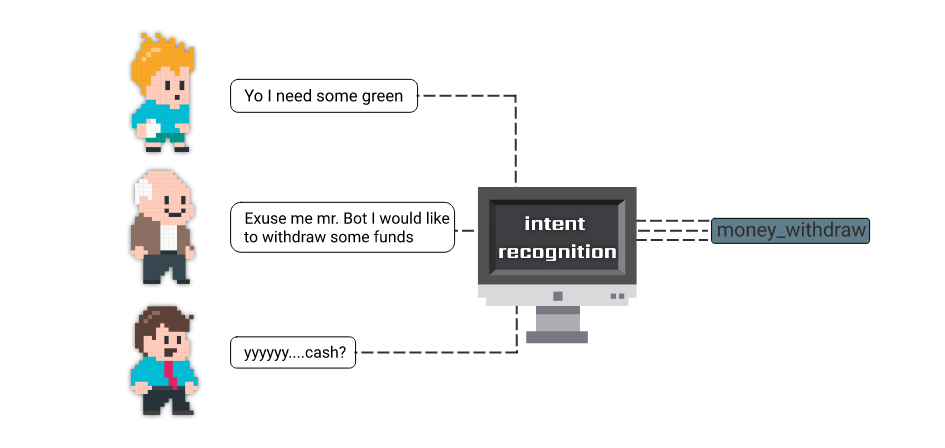
image source: https://chatbotslife.com/how-to-make-a-chat-bot-form-scratch-in-50-lines-of-code-theory-and-practice-eb0182bf052f
In this week's lab, you will start working on building a voice activated virtual assistant! This lab will guide you through the initial steps of installing necessary modules for voice recognition, setting up your code, and beginning your work on intent recognition.
The goals this week are to:
I recommend that you start working on this project today. As always, let me know if you have any questions or if you need any help.
First, we want to install the speech recognition module that allows us to convert speech from the microphone to text. To do that, we should do the following:
Create a Project07 folder on your computer where you store CS151 projects and labs, hopefully somewhere that is backed up (e.g. in Dropbox, Google Drive, Microsoft One Drive, etc.)
Open VS Code. Create a new Python source code file project7.py (we will use the same file for the lab and the project). Import the turtle module.
Open up a Terminal (e.g. Control+` in VS Code) and change the directory (cd) to the Project07 folder.
Write your file header with your name and file information. And set up a main function that you call through the following statement:
if __name__ == "__main__":
main()
Create a new Python file named speech_to_text.py in your Project07 directory. We will use this file as a module similar to how we used shapelib.py before.
Copy the following code into the speech_to_text.py file and read the comments to understand how it works.
#import library
import speech_recognition as sr
# Initialize recognizer class (for recognizing the speech)
r = sr.Recognizer()
def text_from_speech():
result = ""
# Reading Microphone as source
# listening the speech and store in audio_text variable
with sr.Microphone() as source:
print("Talk")
r.adjust_for_ambient_noise(source)
audio_text = r.listen(source)
print("Time over, thanks")
# recoginize_() method will throw a request error if the API is unreachable, hence using exception handling
try:
# using google speech recognition
result = r.recognize_google(audio_text)
print("Text: " + result)
except:
print("Sorry, I did not get that")
return result
What does the function text_from_speech do?
Can you call this function from the file project07.py to test it? (the next step in lab will do that)
Let’s go to the file project07.py and import turtle and the newly created speech_to_text module.
import turtle
import speech_to_text as ST
From now on, we will refer to the speech_to_text module as ST in our code. Let’s call the function text_from_speech from the speech_to_text module:
ST.text_from_speech()
Run your program and make sure that it prints what you say in the terminal. If you run into any problems we are here to help.
Objective. The main objective of this project is to build the intent recognition code that can convert voice instructions into turtle commands. For example, if the user says “turtle go to 100 and 200” then our code would the following function after parsing the string to recognize the goto command with the x and y coordinates:
assistant.goto(x_cor, y_cor)
In your main function, create a turtle (do not use the make_turtle function). All you need is something like this:
assistant = turtle.Turtle()
This will be the turtle that we will control through voice commands.
Next, we want to press the enter button to trigger word detection, so we will use the input function to pause the program until the user pushes the enter button:
input("press enter to talk")
After that, we will convert the verbal command from the user to text using the speech recognition module:
speech = ST.text_from_speech()
Now, we can parse the string to find commands that we can pass to our turtle, a simple example is looking for the word “UP” in speech to instruct our turtle to move up:
# up command
if "up" in speech:
assistant.up()
As you can tell, this is a really simple example and we will need to recognize many commands to make our virtual assistant able to draw interesting pictures. The next section of the lab will cover a more interesting example.
As an example of a more interesting voice command, we can write a recognizer for the voice command “go to 100 and 200.”
We can assume that we have a go to command if the user mentions the words “go to” in string speech. Therefore, we can check whether we have “go to” in our string using the following code:
# goto command
if "go to" in speech:
This expression will evaluate to True or False, and if it is False we can assume that the user did not intend to make the turtle go to a specific position on the screen. If the expression evaluates to True, that means that “go to” is in the string speech, and therefore we want to know where the user wants the turtle to go. To do that we want to look at the individual words that the user said, and we can use the split function to do that:
tokens = speech.split(' ')
This will assign tokens a list of strings where each element is a word from speech:
0 | 1 | 2 | 3 | 4 | |
tokens = | go | to | 100 | and | 200 |
We can assume that the x and y coordinates are always going to be separated by the word “and” in the voice command, and therefore all we have to do to find the x coordinate is find the index of the word “and” in the list and subtract one from it.
x_cor_index = tokens.index('and') - 1
Can you think of the line of code to find the index of the y coordinate?
(I will let you do this one on your own)
Now that we have the index of the x and y coordinates, we want to get the coordinates and convert them to integers (since tokens is a list of strings). To do that we can access the index of the x_corrdinate in tokens and convert it into an integer:
x_cor = int(tokens[x_cor_index])
Can you write the line of code to convert the y coordinate to an int?
(I will let you do this one on your own)
Now that we have x and y coordinates as integers, we can call the function goto with the coordinates chosen by the user:
turt.goto(x_cor, y_cor)
Multiple phrases could have the same intent (check lab image for an example). For example the previous command: “go to 100 and 200” could be expressed as “go to 100 + 200” or even “make turtle go to coordinates x 100 and y 200” and that might not work with our current intent recognizer. Therefore, we must try to account for the different ways a user expresses their intent and potential variability in speech to text conversion.
For example, if we want to account for the command “go to 100 + 200”, we can add a check for + in our rule:
# goto command
if "go to" in speech:
tokens = speech.split(' ')
if 'and' not in tokens:
x_cor_index = tokens.index('+') - 1
y_cor_index = tokens.index('+') + 1
else:
x_cor_index = tokens.index('and') - 1
y_cor_index = tokens.index('and') + 1
x_cor = int(tokens[x_cor_index])
y_cor = int(tokens[y_cor_index])
turt.goto(x_cor, y_cor)
To make our code listen to multiple commands from the user, we can place our speech recognition and intent recognition rules in an infinite while loop.
while True:
input("press enter to talk")
speech = ST.text_from_speech()
This way, the user can continue to provide voice commands to the virtual assistant.
You are expected to complete the intent recognition part of the code by adding more rules (similar to up and go to) to allow the user to draw shapes on the screen using voice commands. Your work will be graded based on the quality of code and the variability in phrasing that you account for. Make sure to list all the voice commands that your code accounts for in your report.
You should add rules to allows for voice commands that control the following turtle functions:
Include in your report a drawing that was constructed with voice commands using your own virtual assistant code. You can include a video of someone else using your virtual assistant to evalue it if you like (optional).
Suggested extensions:
1- Add more intent recognition rules for turtle commands that are not covered in the basic voice commands list.
2- Add a rule for a complex command that involves more than 2 parameters. This could be a call to one of the previous functions that you have implemented in shapelib.py.
3- Be creative! (0.25 - 4 extension points).