The goals this week are to:
Good code organization saves you time and effort in the long run. It is essential whenever you collaborate with others and write any code professionally.
Create a Lab02 folder on your computer where you store CS151 projects and labs, hopefully somewhere that is backed up (e.g. in Dropbox, Google Drive, Microsoft One Drive, etc.)
Open VS Code. Create a new Python source code file calledLab2.py.
Open up a Terminal (e.g. Control+` in VS Code) and change the directory (cd) to the Lab02 folder.
In Lab2.py, write a function that draws a triangle. It should take in one parameter, side_length, which is the length (in pixels) of each of the sides. Important: Draw your triangle so that the turtle starts out at the lower-left corner. Remember, the turtle initially faces eastward.
Call your triangle function from main code (i.e. code that is not indented at the bottom of your file). Make sure that your code works (draws a triangle starting at the lower-left corner) by telling Python to run it using Terminal (i.e. python3 Lab2.py).
Now look over your Lab2.py file, including your triangle function, and make sure that it follows good code organization practice. It should have:
Tip: You may want to speed up the turtle drawing by calling the speed function in main code. If you do, click the link and look at what the one integer parameter means and pick a value that works for you.
Reminders: Use the exitonclick turtle function call at the end of your file and use turtle.<function> to call any turtle function.*
Let's make it possible to draw a triangle at any position on the canvas, not just starting at the middle (i.e. position (x, y) = (0, 0)).
Your goto function should take in two parameters: x and y. This will allow the turtle to go position x and y, no matter where it currently is on the canvas.
You can write this function in three steps:
Some more things to add to your function:
In main code at the bottom of your file, call your goto function (move the turtle to a position of your choice), then have the turtle draw a triangle there. Repeat this a few times with different positions. You should end up with a canvas that looks something like this (your drawing will probably look different and that's ok!):
Remember: In main code, you want to call YOUR goto function, NOT the turtle's. So you should write commands like goto(140, 0) rather than turtle.goto(140, 0).
Before continuing, comment out both the penup and pendown commands in your goto function then run your program. What happens? Do you see why they are needed in goto?
Remember to uncomment them before continuing on to the next task!
Let me know when you reach this point. We will discuss the strategy for drawing your shapes at any size (scale) and position.
Write a new triangle2 function that has the following signature:
def triangle2(x, y, scale):
'''Draws a triangle at any (`x`, `y`) position and scale (`scale`)
By default, the side lengths are 100 (when `scale` = 1)
'''
# your code here
Your triangle2 function should "teleport" the turtle to the given location (x, y) position and draw a triangle with a side length equal to 100 pixels when the scale parameter is 1.
Guidelines:
Comment out any existing function calls in main code that are not speed or exitonclick. Test triangle2 by calling it 3 times: with scale 1 (natural size), 2 (double natural size), and 3 (triple natural size).
Below is an example output. You do not need to make it look fancy; the important thing is that the triangles appear in different positions at the 3 sizes.
Video. Strategy for reusing shape functions (e.g. triangle2) to make a compound shape: a more complex shape made up of your simpler shapes arranged in different positions and/or scales.
Let's assume that you have designed a shape (triangleStack) with hard-coded values that look good to you:
def triangleStack(x, y, scale):
'''Draws three triangles on top of each other.
Smaller triangles are placed on top of larger ones
'''
# Largest triangle
triangle2(0, 0, 2)
# Medium triangle in middle
triangle2(50, 173.2, 1)
# Small triangle on top of stack
triangle2(75, 259.81, 0.5)
We are going to convert the hard-coded compound shape (stack of three triangles) into a shape that we can move to any position and make any scale that we wish. We will do this in two stages.
First, convert the hard-coded positions to offsets. Make the lower-left corner of the first triangle (where the turtle starts out) "the origin" at (x, y) — i.e. has offset of (0, 0). Compute the offsets relative to (x, y).
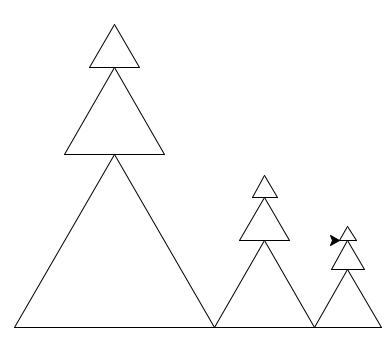
When you're done, test it by commenting out existing main code and draw triangleStack at three positions: (x, y) = (-200, 0), (x, y) = (0, 0), and (x, y) = (200, 0). The scale parameter value does not matter right now. You should get this arrangement:
The second and last step is to make the triangle stack resizable. Do this by multiplying the offsets and scales by scale.
When you're done, test it by modifying your existing main code:
You should get this arrangement:
Take a screenshot — this is Required Image 1 to be placed in your report.
Once you are done with each of the lab tasks, you may start on the project.