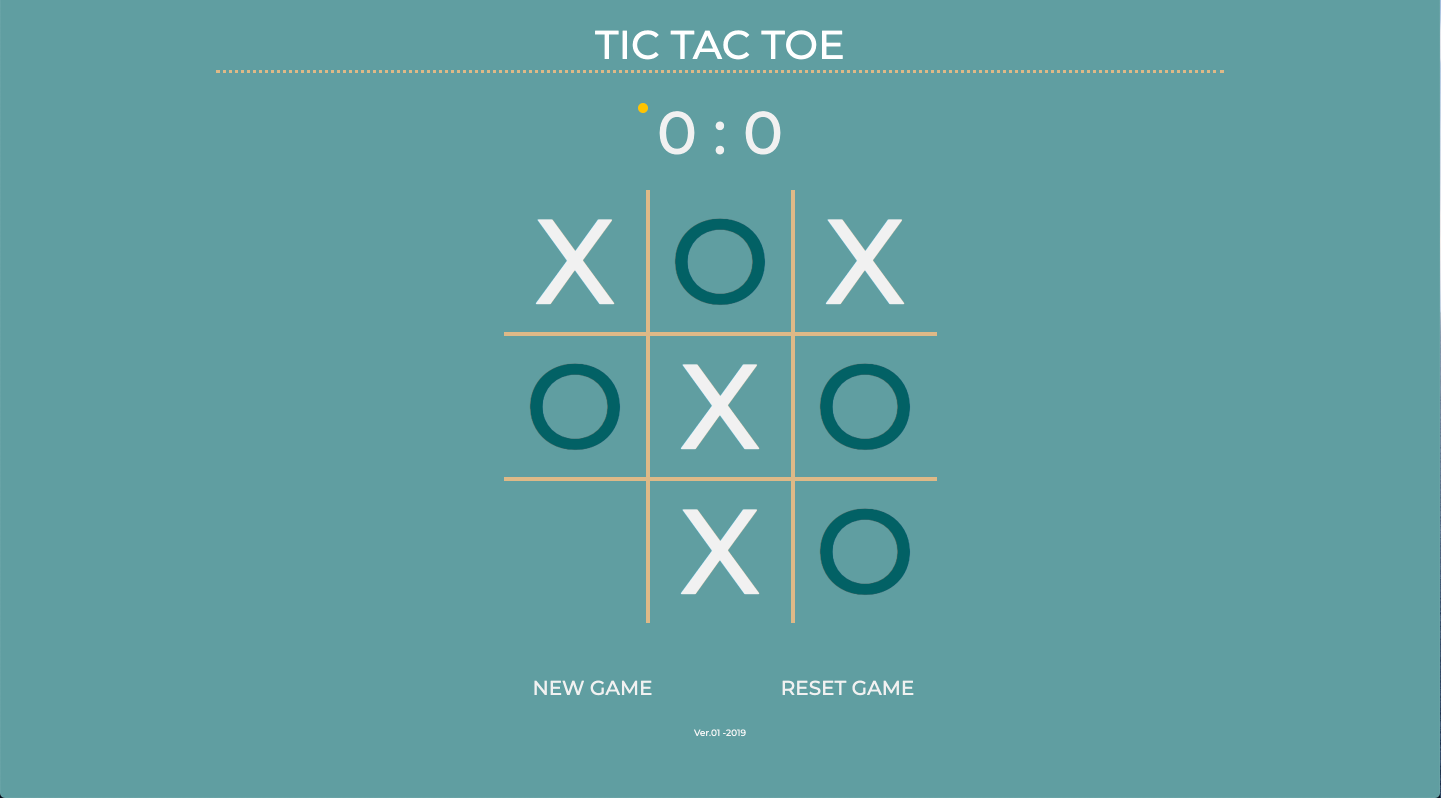
Lab 6: Tic-tac-toe
A CS151 Game
In this week's lab, you will start working on implementing the game Tic-tac-toe! This lab will guide you through the initial steps of setting up your code and game logic, and your job in project 6 is to implement the remaining parts of the game.
The goals this week are to:
I recommend that you start working on this project today. Unlike the last project, this project needs more time to complete. As always, let me know if you have any questions or if you need any help.
Create a Lab06 folder on your computer where you store CS151 projects and labs, hopefully somewhere that is backed up (e.g. in Dropbox, Google Drive, Microsoft One Drive, etc.)
Open VS Code. Create a new Python source code file project6.py (we will use the same file for the lab and the project). Import the turtle module.
Open up a Terminal (e.g. Control+` in VS Code) and change the directory (cd) to the Lab06 folder.
Write your file header with your name and file information. And set up a main function that you call through the following statement:
if __name__ == "__main__":
main()
Write make_window and make_turtle functions like we did last lab. You can copy them if you want, but why don’t we practice writing them again to refresh our memory. Here are the function signatures to help you write the two functions:
def make_window(window_title, bgcolor, width, height):
''' this function creates a screen object and returns it '''
def make_turtle(shape, color, stretch_width, stretch_length, x_pos, y_pos):
''' creates a turtle and sets initial position, returns the turtle '''
After writing the two functions, let’s make a window object in the global scope (no indentation) with the following parameters:
"Tic Tac Toe", "light sky blue", 800, 600
Remember that make_window returns a screen object, so let’s call that object window.
Similarly, let’s make a turtle object, called my_turtle, with the following parameters:
'classic', "white", 1, 1, 0, 0
Remember that make_turtle returns a turtle object.
Next, let’s create a function that makes a grid called make_grid, the function creates a grid with any number of rows, any number of columns and returns it. To help you write the function, here’s the function signature:
def make_grid(rows, cols):
''' make a rows x cols grid with values 0 and returns it '''
Remember, this function returns a grid.
Go ahead and test this function by creating a 3x3 grid for the game Tic-tac-toe in the global scope where you created the window and the turtle objects.
Print the grid to verify it visually.
For our game, we want players to be able to see a nice representation of the grid on the screen, so let’s write a function to draw the grid like we did in class yesterday (check your notes if you need).
Implement the following method according to the comments on each line:
def draw_grid(grid, turt, x_pos, y_pos, tile_size):
''' draws a grid at x, y with a specific tile_size '''
# goto x, y
# loop over grid cells
# find x, y for drawing the cell
# if cell value is 1 draw X
# if cell value is 2 draw O
# else draw an empty spot
The parameter grid is the grid to be drawn, turt is the drawing turtle, x_pos and y_pos are the initial x-position and y-position for drawing the grid, and tile_size is the size of each cell in the grid.
Test this method by drawing the grid on the screen from the main function. Some recommended values are:
x_offset = -50
y_offset = 50
tile_size = 50
Also, let’s define a turn variable representing the number of the player who is supposed to play.
turn = 1
This can take values of 1 or 2 (for player 1 or player 2). Notice that this is defined in the global scope so it can be accessed from anywhere, this will by handy later.
This project needs more time than the project from last week, so I recommend that you start working on it today.
You are expected to complete a couple of functions to complete the implementation of the game Tic-tac-toe. Your first task is to write the function play according to the instructions in the comments.
Now that our empty grid appears on the screen, let’s add some mouse functionality to our game. We want the player to click on the tile where they want x or o to be placed, so let's see how that works with python.
Similar to how we handled key presses last lab, Python allows for mouse clicks to call a specific function that we can write. In addition to calling the function, each mouse click has a x-position and y-position representing where the click happened on the screen. Python will pass these values to our function as two parameters. Keeping that in mind, let’s start by binding mouse clicks to our function play:
window.onscreenclick(play)
window.listen()
Add the lines of code above to your main function. The function onscreenclick calls the function play everytime there is a click on the window. It also passes the x-position and y-position of the click on the window. The listen function makes the window listen to mouse clicks from the user.
We didn’t define the function play yet, so let’s go ahead and do that. We still remember that the function takes x-position and y-position as arguments representing the position of the mouse click. Here’s the top part of the function:
def play(x_pos, y_pos):
''' This function is called everytime there is a click on the screen
python passes the position of the click to us through the arguments
x_pos: click c-position
y_pos: click y-position
'''
global turn
# figure out what this line does and explain why we need each token in the expression
row = int(abs((y_pos - y_offset - (tile_size/2)) // (tile_size) + 1))
col = int(abs((x_pos - x_offset - (tile_size/2)) // (tile_size) + 1))
print(row, col)
# change the clicked cell in the grid to hold the value in turn
# draw the grid and update window after each click
# check winner
# switch turns
The function is incomplete, and you are expected to complete it according to the comments inside it. The line “global turn” indicates that inside this function we will use the variable turn from the global scope. Can you figure out what the following two lines do? Use the print statement below them to test your hypotheses.
Remember to restore the lines back to the original code after you make any changes. Use row and col in the rest of your code where you implement the concepts in the comments.
Add the following code to your main function to run the game continuously so you can test your code:
while True:
# keeps the game running
window.update()
The play function should check the game winner, which will be a function that you have to write. The function takes the game grid and a player as arguments and returns true if the player won the game and false otherwise. To help you write the function here’s the function signature and some tips in the comments:
def check_win(grid, player):
''' checks the winner in the grid
returns true if player won
returns false if player lost
player is an int the represents turn (1/2)
'''
# check rows
# check columns
# check diagonal \
# check diagonal /
Make sure that you test your check_winner function with multiple cases for each player.
The final feature in the game is to keep score and show the winning count for each player. This concept has been covered in previous projects, the new concept here is that the game could conclude to a tie (draw). Make sure you count wins, losses, and draws between the two players.
Suggested extensions:
1- Enhance the graphics and looks of the game (maximum of 1 extension points).
2- Add a short animation sequence in the beginning of the game. The cheesier the better (maximum of 1 extension points).
3- Find different ways of implementing the check_win function (maximum of 2 extension points).
4- Allow the grid dimensions to be variable (taken as a command line argument). For example, you can run a game with a 5x5 grid where the player wins if they place 3 adjacent tiles in a row, or column, or diagonally. The check winner function will need to be updated. (maximum of 3 extension points)
5 - Add buttons for “new game” and “rest game” at the bottom of the game window.
6- Be creative! (0.25 - 3 extension points)