Lab 4: Unique turtles

In this week's lab, you will create a collage of "turtle tracks" that are left as multiple turtles with unique shapes and colors move from top-to-bottom across the canvas (like footprints left in the snow). The animation of the turtles drawing the collage resembles a colorful version of code rain from The Matrix.
The goals this week are to:
- Learn how to use objects using the familiar turtle module.
- Practice using return values and multiple assignment.
- Practice conditionals.
- Practice reading code documentation to discover new functions that are needed to complete a task.
- Lab 4: Unique turtles
Tasks
L1. The setup
Create a Lab04 folder on your computer where you store CS151 projects and labs, hopefully somewhere that is backed up (e.g. in Dropbox, Google Drive, Microsoft One Drive, etc.)
Open VS Code. Create a new Python source code file calledlab4.py. Import the random and turtle modules.
Open up a Terminal (e.g. Control+` in VS Code) and change the directory (cd) to the Lab04 folder.
L2. Make Screen and Turtle objects
This week, we will use objects to divide up the labor of creating a canvas and drawing shapes with turtle. The division of labor occurs among 2 types of objects:
Screen: You will create aScreenobject that represents the canvas (pop-up window in which each turtle draws stuff). This object will allow you to store and change information relating to the canvas window ("screen") (i.e. its height and width, whether it stays up waiting for you to click, its background color, etc.)Turtle: You can now create more than one turtle that draws on the screen at once! Each turtle is a different object that you create. You will control each independently and customize each one with unique properties: each can have different pen widths, colors, shapes, and locations.
In this task, you will create an object for the screen and several different turtles.
L2a: Create a Screen object
Write a function in lab4.py that has the following docstring:
def make_screen(width, height, title, color='black'):
    '''Makes a `Screen` object: the window in each turtles can draw shapes

    Parameters:
    -----------
    width: int.
        The width of the window/screen in pixels.
    height: int.
        The height of the window/screen in pixels.
    title: str.
        The name that you'd like to call the pop-up window. Appears at the center of top of the window.
    color: str.
        Color string name (e.g. 'black', 'white', etc). This is the background color of the screen.

    Returns:
    -----------
    The `Screen` object that you create.
    '''
    # your code here
It may be helpful to have class notes and the turtle documentation open as you work. Your function should accomplish the following:
- Create a
Screenobject. - Set the height and width of the screen.
- Set the background color.
- Set the title
- Return the screen object that you created.
Reminder: With objects, you call functions ON THEM, not on the turtle module (e.g. screen.setup(width, height), not:turtle.setup(width, height), assuming your Screen object is called screen).
L2b: Make the screen appear
Make a main function in lab4.py. In it, call your make_screen function and remember to assign a variable to the Screen object that make_screen returns. For example,
screen = make_screen(<plug in your 3 or 4 parameters here>). You can pass in whatever parameter values that you like when you call make_screen. Here are some suggestions:
- A good starting point for the screen size is 500 pixels (width) x 400 pixels (height). You may change this later based on your preferences.
- Give the window a title string. Again, you can change this later.
- You can leave the background color its default value (black) or change it.
Call the exitonclick method on your Screen object at the end of your main function.
Create the usual conditional statement for main code at the bottom of lab4.py (i.e.if __name__ == '__main__':). Call main in it.
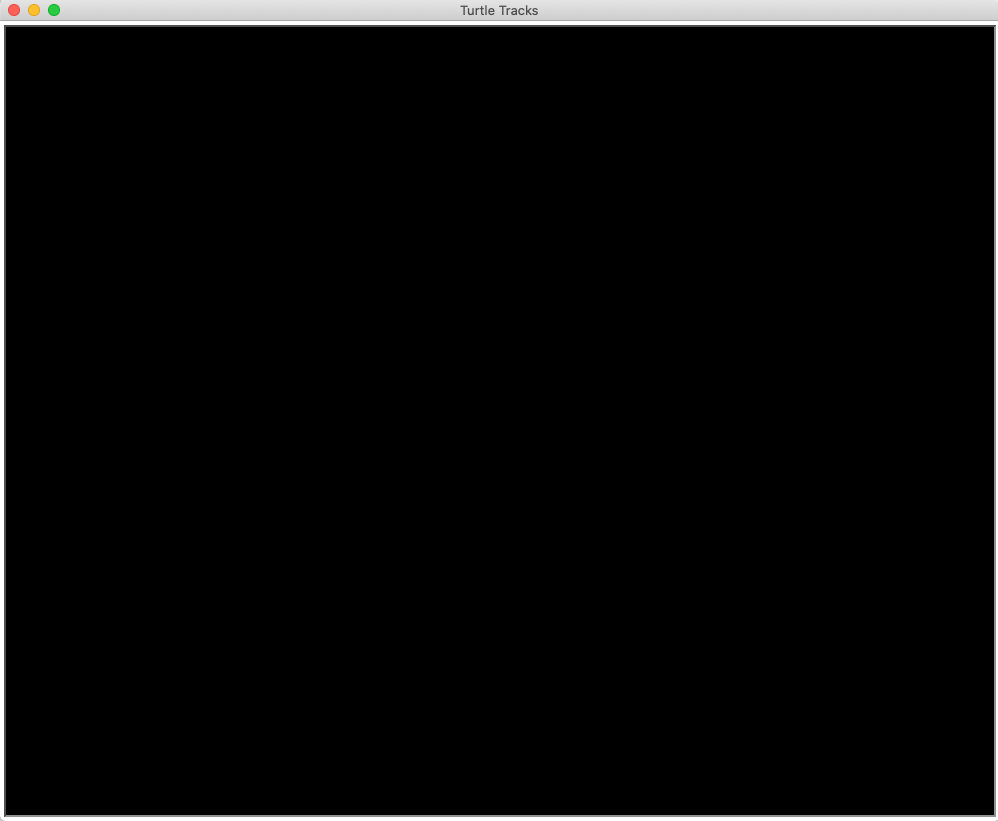
Running lab4.py should give you a blank window like this, with your custom size and title (my background color is black and I used the Screen title "Turtle Tracks"):
Spend a moment to play with your title, window size, and background color to get a sense of how each property controls how the screen looks.
L2c: Create one Turtle object
Write a function that creates a single Turtle object that will appear on the canvas (represented by your Screen object) with the following docstring:
def make_turtle(shape='turtle', penColor='white'):
    '''Makes a `Turtle` object

    Parameters:
    -----------
    shape: str.
        From the turtle documentation website, possible options are:
        'arrow', 'turtle', 'circle', 'square', 'triangle', 'classic'
    penColor: str.
        Color string name (e.g. 'black', 'white', etc) that is to be the pen color of this turtle.

    Returns:
    -----------
    The `Turtle` object that you create.
    '''
    # your code here
Your function should do the following (again, it probably will be helpful to look at lecture notes and the turtle documentation):
- Create one
Turtleobject (calling yourmake_turtlefunction multiple times later on will allow you to create multiple, uniquely customized turtles). - Set the shape of the turtle object based on the parameter that you pass in.
- Set the pen color of the turtle object based on the parameter that you pass in.
- Set the turtle object's pen to be up. We want each turtle to leave their "tracks" as they move, not a connected line.
- Return the
Turtleobject that you created.
Reminder: You should NOT be typing turtle.<stuff> except for the first line where you create the Turtle object! Instead, call methods on your turtle object.
L2d: Make a few Turtle objects
After creating your Screen object in main, but before you call exitonclick, call make_turtle 3 times. This will create 3 turtles that show up on your canvas. Like you did with make_screen, remember to assign the returned object from each make_turtle call to a distinct variable so that you can control each one later (e.g. turt1, turt2, turt3).
Move your first turtle to (x, y) = (-200, 0) by calling the goto method on it, the second turtle to (-50, -50), and the third turtle to (100, 100) (by calling the goto method on each of them).
Running your code should give you something that looks like:

Take a moment to have some fun playing with shapes and colors of each turtle. What do each of the built-in turtle shapes look like?
L3: Reset the position of each turtle
Let's start to create a colorful collage of the "tracks" left behind by each turtle as they move from top-to-bottom across the screen. First, you need to place each turtle in their starting position at the top of the screen.
L3a: Write the reset_turtle function
Write your function with the following signature:
def reset_turtle(turt, screen_width, screen_height):
Your function should do the following with the Turtle object passed in as a parameter (turt):
- Place the turtle at a random position along the top edge of the screen (see hint below).
- Reset the turtle's heading so that it is facing south (Hint: if you forget the heading angle convention, check out the documentation for
setheading). - Set the turtle's pen color to a random RGB tuple, each component ranging between 0 to 1 (Remember the parentheses).
Hint: The center of the screen is position (0, 0).
The x-coordinate of the left edge of the screen is -screen_width/2 and that of the right edge of the screen is screen_width/2.
The y-coordinate of the bottom edge of the screen is -screen_height/2 and that of the top edge of the screen is screen_height/2.
L3b: In main, place your turtles on the starting line
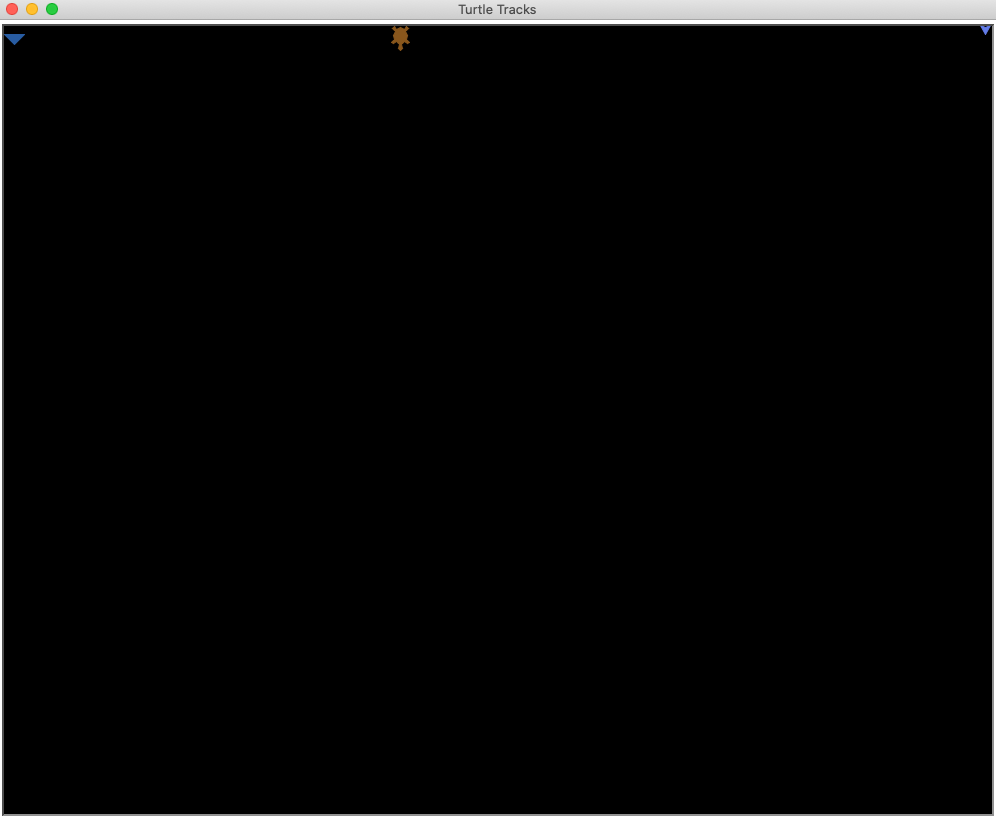
Call your reset_turtle function 3 times in main, once on each of the 3 turtles. You should get something that looks like this (your positions will be different due to randomness):
Tip: If one or more of your turtles are not showing up, try placing them 10 pixels or so below the top of the screen (e.g. screen_height/2 - 10). It is possible that they are up there, but just are not visible because they are slightly off-screen.
L4: Turtle tracks
Write a function with the following signature that should move the turtle turt forward by distance and then stamp to leave a track.
def move_and_stamp(turt, distance):
In main, call move_and_stamp once on each turtle. Have your 3 turtles move different distances: 40, 30, 20, respectively. You should see something that looks like:

L5: Make your collage
In main, repeat the process of moving all 3 turtles forward and having them leave a stamp 1000 times. If any of the turtles moves off the bottom of the screen (the y coordinate is too small), call your reset_turtle function on that turtle.
If everything is working when you run your code, you should see a collage like the one at the top of this page being created!
Once you get the collage working, have some fun and try:
- Speeding up the animations. Call the
speedmethod on yourTurtleobject when you make it. - Add some variety to the distance traveled by each
Turtleduring each movement: randomly move each turtle between 0 and 10 units farther than the default distance.
L6: Scorekeeper: A turtle with a different job
In this last task, you will make another Turtle object — but it will have the unique job of writing text on the screen (rather than leaving tracks or drawing shapes).
L6a: Keeping count of strides
In main, define a counter variable that starts at 0 and gets incremented by 1 whenever any one of your turtles completes a stride from top-to-bottom of the screen and gets reset. In other words, this variable should keep track of how many times you call reset_turtle.
I suggest printing out the variable when you update it (i.e. add one to it) to help you debug / help convince yourself that your code is working.
L6b: Make a function to write text to the screen
This function will have a Turtle object write your current stride count on the screen.
Make a function with the following signature:
def writeNumStrides(turt, numStrides):
It should do three things:
- Call the
clearmethod on theturtTurtle object. This will have the turtle erase the previous number to prepare to write the current one. For example, ifnumStrideswas previously 1 (and 1 is shown on the screen),clearwill erase that so that a new number (e.g. 2) can be written. - Copy and paste the line:
turt.write(numStrides, font=('Arial', 30, 'normal')).
This will have the turtle write the number on the screen in a nice, large font. - Call the
hideturtlemethod on theTurtleobject. This will make the turtle shape go invisible so that it does not block the number it just wrote!
L6c: Have a new Turtle write the stride count on-screen
In main, create one new Turtle object — the shape does not matter, but I suggest using a white pen color if you are keeping the default screen background color of black (you want to be able to see the text on your background color!).
Place the new Turtle object somewhere on the screen (not the top). For example, I placed mine in the middle, 10 pixels higher than the bottom of the screen.
Whenever you call reset_turtle and increment your stride counter (i.e. assign it to one more than its current value), call the writeNumStrides function to have the latest stride count always appear on the screen.
Test out your collage with the new counter. You should see the stride count on screen and it should increase by 1 whenever a turtle reaches the bottom of the screen.
Get started with the project
Once you are done with each of the lab tasks, you may start on the project.