CS 151 Computational Thinking: Visual Media Applications
(Labs)
Lab 4
Due: Tuesday, February 28, 2017, 11:59 pm
Images
The main purpose of this lab is to give you the tools you need to complete an image-manipulation project. You will be using John Zelle's graphics package. Here is the reference guide.
Tasks
- In your personal file space, make a folder called Project4. Then download the following files to it.
- Open a text editor (e.g TextWrangler). Create a new file called show.py. Put a comment at the top of the file with your name and the date. Save it in your Project4 folder.
- After the comment line, write the command to tell Python to import
the graphics package, the display package, and the sys package:
	import graphics
	import display
	import sys
- Download your picture from here. You are also
welcome to use any of the following images. Left-click the picture and
download it (on the lab computers, it will automatically download into
the Downloads folder)
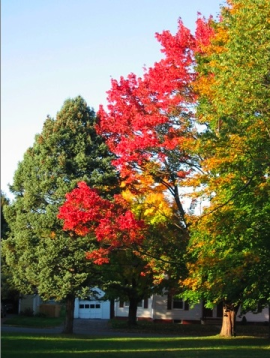
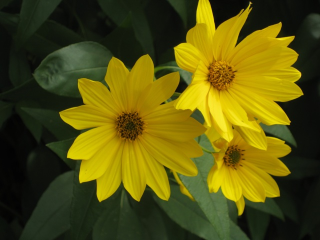
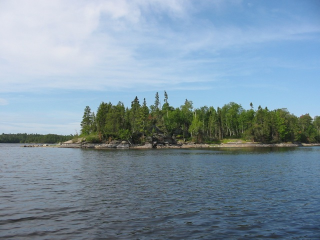
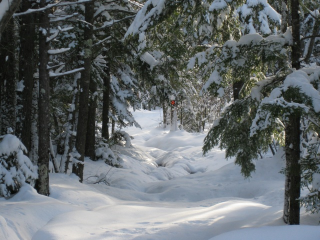
You will need to convert your photo to the PPM format. One way to do that is by using the ImageMagick program called convert. It is installed on the lab computers. Here is an example of how to convert and shrink a JPG image to a PPM image.
convert myImage.jpg -scale 25% mySmallImage.ppmThe convert program is a very powerful application for manipulating images. If you want to find out more about it, check out the ImageMagick web site.
In general, if you want to convert an image of one type to an image of another type, you can use the convert function. For example, the following converts an image of type JPG to an image with the same name of type PPM.
convert imageA.jpg imageA.ppmBy swapping the suffixes, you can change in image of type PPM to an image of type JPG. If you use the .png suffix for the second image, the result will be of type PNG (good for web pages). PNGs and JPGs are the best formats for your writeup or for web pages.
The first thing we're going to do is create a simple program that will read image data from a file and display it in a window. We'll use the command line to specify the filename of the image to view.
Create a main function in your show.py file. Give it one argument, which will be the list of strings from the command line. One of these strings should be the filename of the image to open and view. The main function should do the following.
- Test if there are at least two strings in the main function
parameter: the name of the python program and the filename of the
image to open. If there are not at least two strings, print a usage
message and exit using the
exit()function. Use thelen()function to test how many strings there are in the list. Load image data from the file specified in the second string of the main function parameter into a Pixmap. You can do this by calling the function
graphics.Pixmap()with the filename as the argument and then assigning the result to a variable.Any time we need to store, retain, or assign information, we need to use an assignment statement. In this case, we want to store the Pixmap object created by the graphics.Pixmap() function call. Therefore, you need a variable on the left side of an assignment and the
graphics.Pixmap()call on the right. You need to pass the filename to the Pixmap function. The filename will be the second element in the list of strings from the command line, which is the main function parameter.- Use the
displayPixmapfunction in the display package to create a window and display the Pixmap. You went over this function in class. It takes two arguments, which are the Pixmap to display and the title to be displayed in the window. You could use the filename as the title of the window. The displayPixmap function returns a window reference, which you need to assign to a variable. That means the variable to hold the window reference must be on the left side of an assignment and the function call must be on the right. - Finally, call the
getMousemethod of the window. That means you type the name of the variable holding the window reference, then.getMouse()to call the method. This will wait for a mouse click in the window and then go on to the next instruction. If there is no next instruction, the program will terminate.
Below the main function, put a conditional call to it, using the method we learned last week. Pass the main function the list sys.argv.
  if __name__ == "__main__":
    main(sys.argv)
Once complete, try out your show function.
- Test if there are at least two strings in the main function
parameter: the name of the python program and the filename of the
image to open. If there are not at least two strings, print a usage
message and exit using the
- The second thing we're going to do in lab is figure out how to
manipulate pixels in an image. Each pixel in a color image has three
values (r, g, b). Each pixel is addressed by its row and column. There
are rows x columns pixels in an image. The Zelle graphics library
(graphics.py) contains two functions that make it easy to get and set
pixels if you have a Pixmap object. The three lines below demonstrate
how you would read in a Pixmap from a file (which we did above) and
then swap the red and blue channels of pixel 42 (x), 35 (y).
  pm = graphics.Pixmap( 'mypixmap.ppm' )
  (r, g, b) = pm.getPixel( 42, 35 )
  pm.setPixel( 42, 35, (b, g, r ) )
- Create a new file called filter.py. Do the usual stuff of putting your name and a date at the top. Then import graphics and sys. Save it in your Project4 directory.
- Create a function named something like swapRedBlue that
takes in one argument, which will be a Pixmap object. The algorithm is
written below as comments, properly indented. Read through them and
make sure you understand the process. Then fill in the python code.
After the Python code has been written, please remove these comments.
They do not make the code any more readable, as they are just the
English version of the code.
def swapRedBlue( pmap ): # loop over each row row_idx # loop over each column col_idx # get the r, g, b values of the pixel indexed by (col_idx, row_idx) # set the pixel indexed by (col_idx, row_idx) to the value (b, g, r) # return - Create a test function in your filter.py file that takes
in an argument which is the list of strings from the command line. As
above, first test if there are enough arguments and print out a usage
statement and exit if there are not. If there are enough arguments,
then open the image and store the result in a variable. Pass the
Pixmap to the swapRedBlue function, then save the result
to a file. If your pixmap variable were pmap, then you
could save it by using
pmap.save('myfilename.ppm')You can pass whatever filename name you want to the save function. I'd recommend not having spaces in the name.
At the end of your filter.py file, put a call to your test function behind a conditional that tests the value of the
__name__variable, as we did last week.if __name__ == "__main__": test( sys.argv )Note that this is the only place in your filter.py file where you should use the sys.argv variable. If you are using it in any of your functions, then you are not making proper use of the function parameters.
When you are done, run your filter.py program, giving it an image filename as the argument. Then look at the result with your show program. Now, perhaps, you see why command line parameters are useful beasts.
When you are done with the lab exercises, you may begin Project 4.
© 2017 Ying Li. Page last modified: .